
OpenAI
OpenAI provides both Whisper-based transcription and GPT-based summarization, so a single API key covers both roles in Quendian.
| Role | Models |
|---|---|
| Transcription | whisper-1, gpt-4o-transcribe, or gpt-4o-mini-transcribe |
| Summarization | gpt-4o-mini |
1. Create an API key
Section titled “1. Create an API key”Go to platform.openai.com/api-keys and click Create new secret key.
Key format: sk-proj-… (new project keys) or sk-… (legacy keys)
Copy the key immediately — OpenAI shows it only once.
2. Open Preferences in Quendian
Section titled “2. Open Preferences in Quendian”Navigate to Quendian → Preferences. The same OpenAI API key works for both Transcription and Summarization — paste it into the role you want to configure first; you can paste it into the other role’s pane afterward.
3. Pick a transcription model
Section titled “3. Pick a transcription model”OpenAI offers three transcription presets. Pick one based on what matters most for your meetings.
Whisper-1
Section titled “Whisper-1”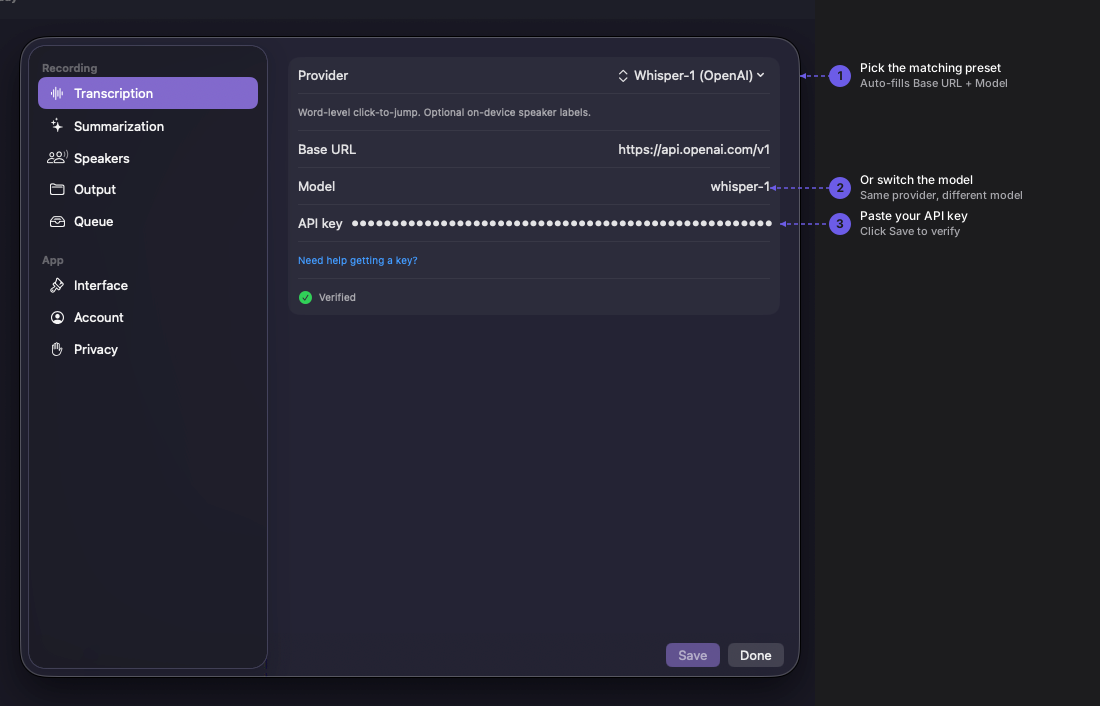
The original Whisper model. Word-level click-to-jump is available only with this preset — click any word in the transcript to jump audio playback to that moment. Strong on clean audio.
GPT-4o Transcribe
Section titled “GPT-4o Transcribe”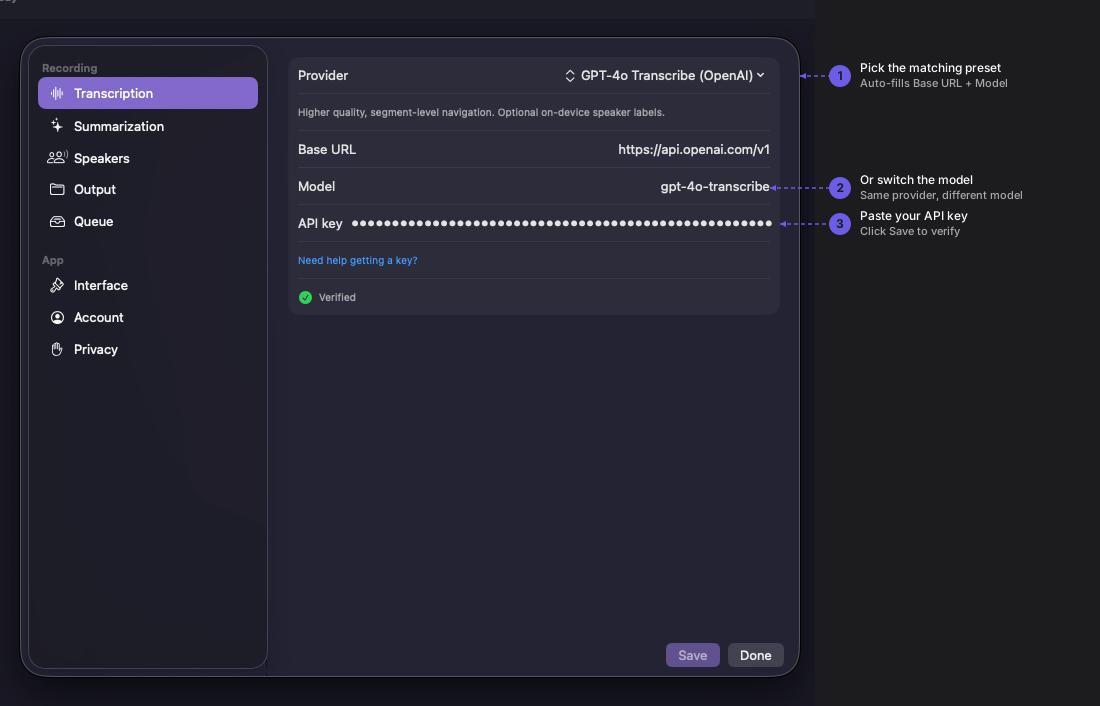
OpenAI’s newer transcription model. Generally cleaner output than Whisper-1, especially on accented English and imperfect mics. Segment-level navigation only — no word-level click-to-jump.
GPT-4o Mini Transcribe
Section titled “GPT-4o Mini Transcribe”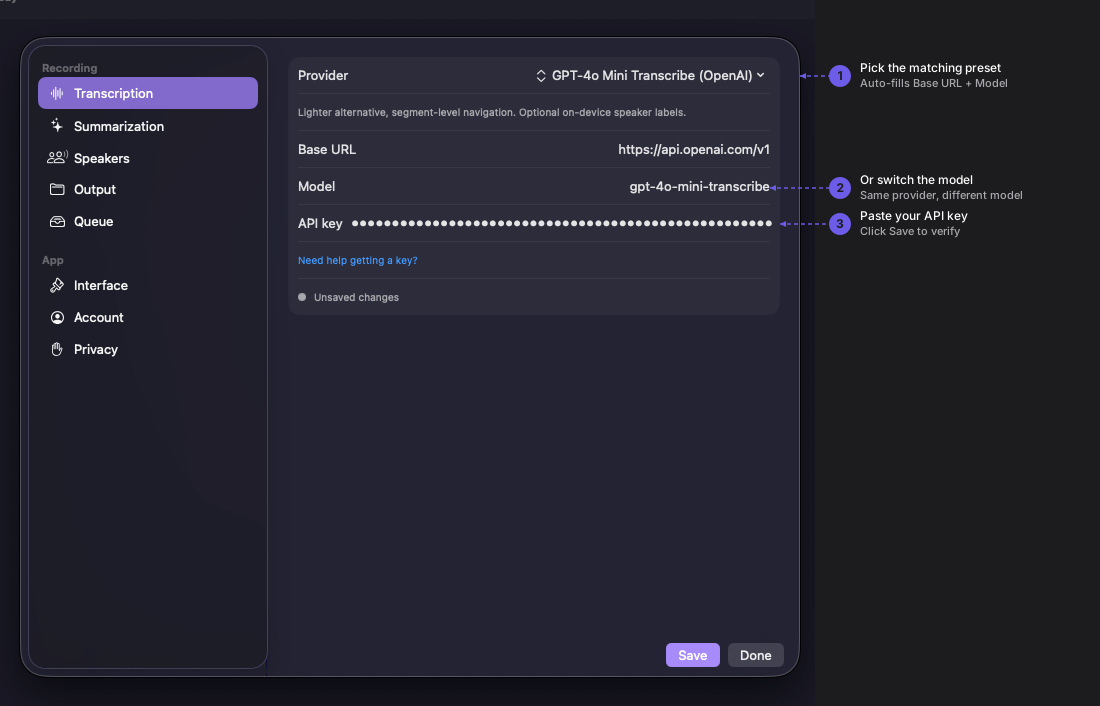
A lighter variant of GPT-4o Transcribe. Same segment-level output, smaller model behind the scenes.
4. Configure summarization
Section titled “4. Configure summarization”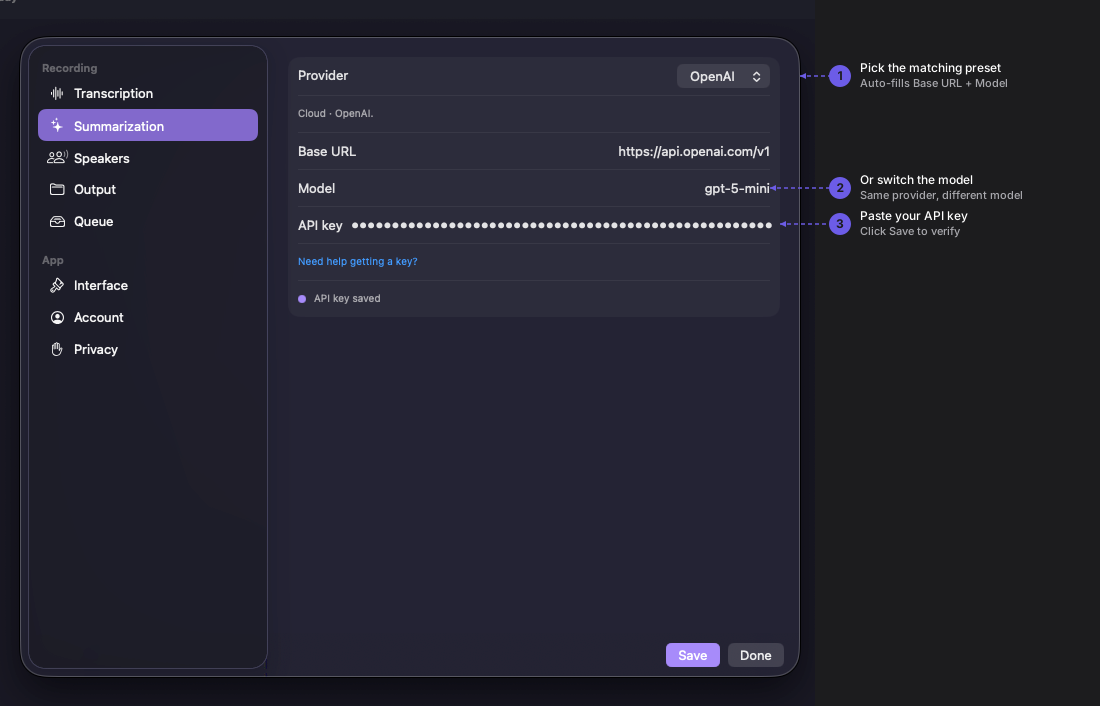
Navigate to Preferences → Summarization, pick the OpenAI preset, and paste the same key. Quendian uses gpt-4o-mini for summaries by default.
Same key, both roles
Section titled “Same key, both roles”A single OpenAI API key authenticates both Transcription and Summarization. Paste it into both Transcription → OpenAI and Summarization → OpenAI. Quendian makes separate API calls per role — no extra setup required.
Monitor usage and pricing
Section titled “Monitor usage and pricing”For current rates, see OpenAI’s pricing page. Track your usage at platform.openai.com/usage.